Deprecated: Creation of dynamic property WP_Term::$cat_ID is deprecated in /home/reshajt1/public_html/wp-includes/category.php on line 378
Deprecated: Creation of dynamic property WP_Term::$category_count is deprecated in /home/reshajt1/public_html/wp-includes/category.php on line 379
Deprecated: Creation of dynamic property WP_Term::$category_description is deprecated in /home/reshajt1/public_html/wp-includes/category.php on line 380
Deprecated: Creation of dynamic property WP_Term::$cat_name is deprecated in /home/reshajt1/public_html/wp-includes/category.php on line 381
Deprecated: Creation of dynamic property WP_Term::$category_nicename is deprecated in /home/reshajt1/public_html/wp-includes/category.php on line 382
Deprecated: Creation of dynamic property WP_Term::$category_parent is deprecated in /home/reshajt1/public_html/wp-includes/category.php on line 383
Deprecated: Creation of dynamic property WP_Term::$cat_ID is deprecated in /home/reshajt1/public_html/wp-includes/category.php on line 378
Deprecated: Creation of dynamic property WP_Term::$category_count is deprecated in /home/reshajt1/public_html/wp-includes/category.php on line 379
Deprecated: Creation of dynamic property WP_Term::$category_description is deprecated in /home/reshajt1/public_html/wp-includes/category.php on line 380
Deprecated: Creation of dynamic property WP_Term::$cat_name is deprecated in /home/reshajt1/public_html/wp-includes/category.php on line 381
Deprecated: Creation of dynamic property WP_Term::$category_nicename is deprecated in /home/reshajt1/public_html/wp-includes/category.php on line 382
Deprecated: Creation of dynamic property WP_Term::$category_parent is deprecated in /home/reshajt1/public_html/wp-includes/category.php on line 383
Deprecated: Creation of dynamic property WP_Term::$cat_ID is deprecated in /home/reshajt1/public_html/wp-includes/category.php on line 378
Deprecated: Creation of dynamic property WP_Term::$category_count is deprecated in /home/reshajt1/public_html/wp-includes/category.php on line 379
Deprecated: Creation of dynamic property WP_Term::$category_description is deprecated in /home/reshajt1/public_html/wp-includes/category.php on line 380
Deprecated: Creation of dynamic property WP_Term::$cat_name is deprecated in /home/reshajt1/public_html/wp-includes/category.php on line 381
Deprecated: Creation of dynamic property WP_Term::$category_nicename is deprecated in /home/reshajt1/public_html/wp-includes/category.php on line 382
Deprecated: Creation of dynamic property WP_Term::$category_parent is deprecated in /home/reshajt1/public_html/wp-includes/category.php on line 383
Deprecated: Creation of dynamic property WP_Term::$cat_ID is deprecated in /home/reshajt1/public_html/wp-includes/category.php on line 378
Deprecated: Creation of dynamic property WP_Term::$category_count is deprecated in /home/reshajt1/public_html/wp-includes/category.php on line 379
Deprecated: Creation of dynamic property WP_Term::$category_description is deprecated in /home/reshajt1/public_html/wp-includes/category.php on line 380
Deprecated: Creation of dynamic property WP_Term::$cat_name is deprecated in /home/reshajt1/public_html/wp-includes/category.php on line 381
Deprecated: Creation of dynamic property WP_Term::$category_nicename is deprecated in /home/reshajt1/public_html/wp-includes/category.php on line 382
Deprecated: Creation of dynamic property WP_Term::$category_parent is deprecated in /home/reshajt1/public_html/wp-includes/category.php on line 383
Deprecated: Implicit conversion from float 1793082305.167743 to int loses precision in /home/reshajt1/public_html/wp-content/plugins/intelly-related-posts/includes/classes/utils/Logger.php on line 93
selamat datang di blog saya, kali ini saya akan membagikan tutorial bagaimana cara menyembunyikan/ hide Mac Address atau menghentikan proses Broadcast Mac Address pada mikrotik. Apasih proses Broadcasting pada mikrotik ?. seperti yang kalian tau, saat membuka aplikasi pendukung mikrotik, yaitu winbox. Pasti winbox akan melakukan Scan Mac Address Mikrotik yang ada di jaringan yang …
Continue reading "Cara mematikan MAC ADDRESS BroadCast pada Mikrotik"
The post Cara mematikan MAC ADDRESS BroadCast pada Mikrotik appeared first on ReshaJTama.
]]>Deprecated: Creation of dynamic property WP_Block::$attributes is deprecated in /home/reshajt1/public_html/wp-includes/class-wp-block.php on line 179
Deprecated: Creation of dynamic property WP_Block::$attributes is deprecated in /home/reshajt1/public_html/wp-includes/class-wp-block.php on line 179
Deprecated: Creation of dynamic property WP_Block::$attributes is deprecated in /home/reshajt1/public_html/wp-includes/class-wp-block.php on line 179
Deprecated: Implicit conversion from float 1793082305.170946 to int loses precision in /home/reshajt1/public_html/wp-content/plugins/intelly-related-posts/includes/classes/utils/Logger.php on line 93
Deprecated: Implicit conversion from float 1793082305.17107 to int loses precision in /home/reshajt1/public_html/wp-content/plugins/intelly-related-posts/includes/classes/utils/Logger.php on line 93

Ini adalah kelebihan mikrotik, tetapi ini juga adalah kelemahanya. karena dengan begitu orang orang yang ada di dalam jaringan, dapat mengetahui ada berapa device mikrotik yang ada di jaringan yang dia masuki. Dengan begitu mereka bisa melakukan proses exploitasi/ mengambil control terhadap mikrotik tersebut. oleh karena itu untuk lebih amannya kita bisa menyembunyikan/hide Mac Address dengan menghentikan proses broadcasting nya. Oke langsung saja ke tutorial nya :
- Masuk ke router OS anda
- Kemudian masuk ke menu IP > Neighboor
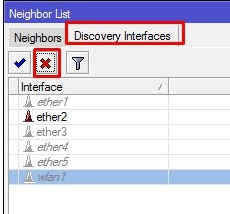
3. Kemudian pilih interface yang akan di beri akses untuk mendiscovery mac address nya.
Anda juga dapat melakukannya dengan proxy-arp, perbedaannya hanya pada broadcast nya. pada proxy-arp broadcast akan tetap berjalan, tetapi peng akses tidak dapat menggunakan mac address tersebut untuk masuk ke Router. berikut cara nya :
- Buka RouterOS dengan winbox
- Kemudian pilih menu Interface
- disini anda tinggal pilih interface yang ingin menggunakan proxy-arp
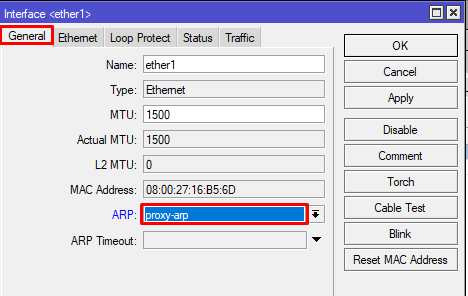
mungkin tutorial berikut dapat membantu anda untuk mengamankan router agar dapat terproteksi dan tidak terkena exploitas. semoga berguna dan terima kasih telah berkunjung.
The post Cara mematikan MAC ADDRESS BroadCast pada Mikrotik appeared first on ReshaJTama.
]]>Deprecated: Creation of dynamic property WP_Term::$cat_ID is deprecated in /home/reshajt1/public_html/wp-includes/category.php on line 378
Deprecated: Creation of dynamic property WP_Term::$category_count is deprecated in /home/reshajt1/public_html/wp-includes/category.php on line 379
Deprecated: Creation of dynamic property WP_Term::$category_description is deprecated in /home/reshajt1/public_html/wp-includes/category.php on line 380
Deprecated: Creation of dynamic property WP_Term::$cat_name is deprecated in /home/reshajt1/public_html/wp-includes/category.php on line 381
Deprecated: Creation of dynamic property WP_Term::$category_nicename is deprecated in /home/reshajt1/public_html/wp-includes/category.php on line 382
Deprecated: Creation of dynamic property WP_Term::$category_parent is deprecated in /home/reshajt1/public_html/wp-includes/category.php on line 383
Deprecated: Creation of dynamic property WP_Term::$cat_ID is deprecated in /home/reshajt1/public_html/wp-includes/category.php on line 378
Deprecated: Creation of dynamic property WP_Term::$category_count is deprecated in /home/reshajt1/public_html/wp-includes/category.php on line 379
Deprecated: Creation of dynamic property WP_Term::$category_description is deprecated in /home/reshajt1/public_html/wp-includes/category.php on line 380
Deprecated: Creation of dynamic property WP_Term::$cat_name is deprecated in /home/reshajt1/public_html/wp-includes/category.php on line 381
Deprecated: Creation of dynamic property WP_Term::$category_nicename is deprecated in /home/reshajt1/public_html/wp-includes/category.php on line 382
Deprecated: Creation of dynamic property WP_Term::$category_parent is deprecated in /home/reshajt1/public_html/wp-includes/category.php on line 383
Deprecated: Creation of dynamic property WP_Term::$cat_ID is deprecated in /home/reshajt1/public_html/wp-includes/category.php on line 378
Deprecated: Creation of dynamic property WP_Term::$category_count is deprecated in /home/reshajt1/public_html/wp-includes/category.php on line 379
Deprecated: Creation of dynamic property WP_Term::$category_description is deprecated in /home/reshajt1/public_html/wp-includes/category.php on line 380
Deprecated: Creation of dynamic property WP_Term::$cat_name is deprecated in /home/reshajt1/public_html/wp-includes/category.php on line 381
Deprecated: Creation of dynamic property WP_Term::$category_nicename is deprecated in /home/reshajt1/public_html/wp-includes/category.php on line 382
Deprecated: Creation of dynamic property WP_Term::$category_parent is deprecated in /home/reshajt1/public_html/wp-includes/category.php on line 383
Deprecated: Implicit conversion from float 1793082305.173348 to int loses precision in /home/reshajt1/public_html/wp-content/plugins/intelly-related-posts/includes/classes/utils/Logger.php on line 93
Selamat datang di blog saya, kali ini saya akan membagikan tutorial bagaimana cara untuk mendisable IPv6 pada Centos 7. oke langsung saja ke tutorial nya : Masuk ke file konfigurasi berikut Setelah itu edit pada baris enam Kemudian save dan load kembali grub nya dengan perintah berikut, dan kembali restart Setelah di restart coba cek …
Continue reading "CentOS 7 : Cara disable IPv6 pada CentOS 7"
The post CentOS 7 : Cara disable IPv6 pada CentOS 7 appeared first on ReshaJTama.
]]>Deprecated: Implicit conversion from float 1793082305.174871 to int loses precision in /home/reshajt1/public_html/wp-content/plugins/intelly-related-posts/includes/classes/utils/Logger.php on line 93
Deprecated: Implicit conversion from float 1793082305.175126 to int loses precision in /home/reshajt1/public_html/wp-content/plugins/intelly-related-posts/includes/classes/utils/Logger.php on line 93
- Masuk ke file konfigurasi berikut
[root@localhost ~]# nano /etc/default/grub - Setelah itu edit pada baris enam
GRUB_CMDLINE_LINUX="ipv6.disable=1
rd.lvm.lv=fedora-server/root..... - Kemudian save dan load kembali grub nya dengan perintah berikut, dan kembali restart
[root@localhost ~]# grub2-mkconfig -o /boot/grub2/grub.cfg

[root@localhost ~]# reboot - Setelah di restart coba cek kembali settingan ip nya dengan perintah ifconfig atau ip address
Ya, Sekian dulu dari saya, semoga bermanfaat. terima kasih
The post CentOS 7 : Cara disable IPv6 pada CentOS 7 appeared first on ReshaJTama.
]]>Deprecated: Creation of dynamic property WP_Term::$cat_ID is deprecated in /home/reshajt1/public_html/wp-includes/category.php on line 378
Deprecated: Creation of dynamic property WP_Term::$category_count is deprecated in /home/reshajt1/public_html/wp-includes/category.php on line 379
Deprecated: Creation of dynamic property WP_Term::$category_description is deprecated in /home/reshajt1/public_html/wp-includes/category.php on line 380
Deprecated: Creation of dynamic property WP_Term::$cat_name is deprecated in /home/reshajt1/public_html/wp-includes/category.php on line 381
Deprecated: Creation of dynamic property WP_Term::$category_nicename is deprecated in /home/reshajt1/public_html/wp-includes/category.php on line 382
Deprecated: Creation of dynamic property WP_Term::$category_parent is deprecated in /home/reshajt1/public_html/wp-includes/category.php on line 383
Deprecated: Creation of dynamic property WP_Term::$cat_ID is deprecated in /home/reshajt1/public_html/wp-includes/category.php on line 378
Deprecated: Creation of dynamic property WP_Term::$category_count is deprecated in /home/reshajt1/public_html/wp-includes/category.php on line 379
Deprecated: Creation of dynamic property WP_Term::$category_description is deprecated in /home/reshajt1/public_html/wp-includes/category.php on line 380
Deprecated: Creation of dynamic property WP_Term::$cat_name is deprecated in /home/reshajt1/public_html/wp-includes/category.php on line 381
Deprecated: Creation of dynamic property WP_Term::$category_nicename is deprecated in /home/reshajt1/public_html/wp-includes/category.php on line 382
Deprecated: Creation of dynamic property WP_Term::$category_parent is deprecated in /home/reshajt1/public_html/wp-includes/category.php on line 383
Deprecated: Creation of dynamic property WP_Term::$cat_ID is deprecated in /home/reshajt1/public_html/wp-includes/category.php on line 378
Deprecated: Creation of dynamic property WP_Term::$category_count is deprecated in /home/reshajt1/public_html/wp-includes/category.php on line 379
Deprecated: Creation of dynamic property WP_Term::$category_description is deprecated in /home/reshajt1/public_html/wp-includes/category.php on line 380
Deprecated: Creation of dynamic property WP_Term::$cat_name is deprecated in /home/reshajt1/public_html/wp-includes/category.php on line 381
Deprecated: Creation of dynamic property WP_Term::$category_nicename is deprecated in /home/reshajt1/public_html/wp-includes/category.php on line 382
Deprecated: Creation of dynamic property WP_Term::$category_parent is deprecated in /home/reshajt1/public_html/wp-includes/category.php on line 383
Deprecated: Creation of dynamic property WP_Term::$cat_ID is deprecated in /home/reshajt1/public_html/wp-includes/category.php on line 378
Deprecated: Creation of dynamic property WP_Term::$category_count is deprecated in /home/reshajt1/public_html/wp-includes/category.php on line 379
Deprecated: Creation of dynamic property WP_Term::$category_description is deprecated in /home/reshajt1/public_html/wp-includes/category.php on line 380
Deprecated: Creation of dynamic property WP_Term::$cat_name is deprecated in /home/reshajt1/public_html/wp-includes/category.php on line 381
Deprecated: Creation of dynamic property WP_Term::$category_nicename is deprecated in /home/reshajt1/public_html/wp-includes/category.php on line 382
Deprecated: Creation of dynamic property WP_Term::$category_parent is deprecated in /home/reshajt1/public_html/wp-includes/category.php on line 383
Deprecated: Implicit conversion from float 1793082305.182658 to int loses precision in /home/reshajt1/public_html/wp-content/plugins/intelly-related-posts/includes/classes/utils/Logger.php on line 93
Selamat datang di blog saya, kali ini saya akan membagikan bagaimana cara untuk mensetting ip address pada CentOS 7. Caranya sangat mudah, silahkan ikuti langkah – langkah berikut ini : Setting Hostname Mendisplay interface Setting IPv4 dengan nmcli Setting Default gateway Setting DNS (Domain Name Server) Restart & reload setting Melihat semua settingan itu ya …
Continue reading "CentOS 7 : Konfigurasi IP Address & Hostname pada CentOS 7"
The post CentOS 7 : Konfigurasi IP Address & Hostname pada CentOS 7 appeared first on ReshaJTama.
]]>Deprecated: Implicit conversion from float 1793082305.185345 to int loses precision in /home/reshajt1/public_html/wp-content/plugins/intelly-related-posts/includes/classes/utils/Logger.php on line 93
Deprecated: Implicit conversion from float 1793082305.186457 to int loses precision in /home/reshajt1/public_html/wp-content/plugins/intelly-related-posts/includes/classes/utils/Logger.php on line 93
- Setting Hostname
[root@localhost ~]# hostnamectl set-hostname reshajtama.my.id - Mendisplay interface
[root@localhost ~]# nmcli d

DEVICE       TYPE      STATE      CONNECTION
eth0         ethernet  connected  eth0
lo           loopback  unmanaged  --
- Setting IPv4 dengan nmcli
[root@localhost ~]# nmcli c modify eth0 ipv4.addresses 192.168.1.10/24 - Setting Default gateway
[root@localhost ~]# nmcli c modify eth0 ipv4.gateway 192.168.1.1- Setting DNS (Domain Name Server)
nmcli c modify eth0 ipv4.dns 8.8.8.8- Restart & reload setting
[root@localhost ~]# nmcli c down eth0; nmcli c up eth0

Connection successfully activated (D-Bus active path: /org/freedesktop/NetworkManager/ActiveConnection/1) - Melihat semua settingan itu
[root@localhost ~]# ip addr show

1: lo: <LOOPBACK,UP,LOWER_UP> mtu 65536 qdisc noqueue state UNKNOWN
    link/loopback 00:00:00:00:00:00 brd 00:00:00:00:00:00
    inet 127.0.0.1/8 scope host lo
       valid_lft forever preferred_lft forever
    inet6 ::1/128 scope host
       valid_lft forever preferred_lft forever
2: eth0: <BROADCAST,MULTICAST,UP,LOWER_UP> mtu 1500 qdisc pfifo_fast state UP qlen 1000
    link/ether 00:0c:29:cd:9c:2d brd ff:ff:ff:ff:ff:ff
    inet 192.168.1.10/24 brd 192.168.1.255 scope global eth0
       valid_lft forever preferred_lft forever
    inet6 fe80::20c:29ff:fecd:9c2d/64 scope link
       valid_lft forever preferred_lft forever
ya berikut adalah bagaimana kita memanagement ip address, hostname dan DNS pada Centos 7.
The post CentOS 7 : Konfigurasi IP Address & Hostname pada CentOS 7 appeared first on ReshaJTama.
]]>Deprecated: Creation of dynamic property WP_Term::$cat_ID is deprecated in /home/reshajt1/public_html/wp-includes/category.php on line 378
Deprecated: Creation of dynamic property WP_Term::$category_count is deprecated in /home/reshajt1/public_html/wp-includes/category.php on line 379
Deprecated: Creation of dynamic property WP_Term::$category_description is deprecated in /home/reshajt1/public_html/wp-includes/category.php on line 380
Deprecated: Creation of dynamic property WP_Term::$cat_name is deprecated in /home/reshajt1/public_html/wp-includes/category.php on line 381
Deprecated: Creation of dynamic property WP_Term::$category_nicename is deprecated in /home/reshajt1/public_html/wp-includes/category.php on line 382
Deprecated: Creation of dynamic property WP_Term::$category_parent is deprecated in /home/reshajt1/public_html/wp-includes/category.php on line 383
Deprecated: Creation of dynamic property WP_Term::$cat_ID is deprecated in /home/reshajt1/public_html/wp-includes/category.php on line 378
Deprecated: Creation of dynamic property WP_Term::$category_count is deprecated in /home/reshajt1/public_html/wp-includes/category.php on line 379
Deprecated: Creation of dynamic property WP_Term::$category_description is deprecated in /home/reshajt1/public_html/wp-includes/category.php on line 380
Deprecated: Creation of dynamic property WP_Term::$cat_name is deprecated in /home/reshajt1/public_html/wp-includes/category.php on line 381
Deprecated: Creation of dynamic property WP_Term::$category_nicename is deprecated in /home/reshajt1/public_html/wp-includes/category.php on line 382
Deprecated: Creation of dynamic property WP_Term::$category_parent is deprecated in /home/reshajt1/public_html/wp-includes/category.php on line 383
Deprecated: Creation of dynamic property WP_Term::$cat_ID is deprecated in /home/reshajt1/public_html/wp-includes/category.php on line 378
Deprecated: Creation of dynamic property WP_Term::$category_count is deprecated in /home/reshajt1/public_html/wp-includes/category.php on line 379
Deprecated: Creation of dynamic property WP_Term::$category_description is deprecated in /home/reshajt1/public_html/wp-includes/category.php on line 380
Deprecated: Creation of dynamic property WP_Term::$cat_name is deprecated in /home/reshajt1/public_html/wp-includes/category.php on line 381
Deprecated: Creation of dynamic property WP_Term::$category_nicename is deprecated in /home/reshajt1/public_html/wp-includes/category.php on line 382
Deprecated: Creation of dynamic property WP_Term::$category_parent is deprecated in /home/reshajt1/public_html/wp-includes/category.php on line 383
Deprecated: Creation of dynamic property WP_Term::$cat_ID is deprecated in /home/reshajt1/public_html/wp-includes/category.php on line 378
Deprecated: Creation of dynamic property WP_Term::$category_count is deprecated in /home/reshajt1/public_html/wp-includes/category.php on line 379
Deprecated: Creation of dynamic property WP_Term::$category_description is deprecated in /home/reshajt1/public_html/wp-includes/category.php on line 380
Deprecated: Creation of dynamic property WP_Term::$cat_name is deprecated in /home/reshajt1/public_html/wp-includes/category.php on line 381
Deprecated: Creation of dynamic property WP_Term::$category_nicename is deprecated in /home/reshajt1/public_html/wp-includes/category.php on line 382
Deprecated: Creation of dynamic property WP_Term::$category_parent is deprecated in /home/reshajt1/public_html/wp-includes/category.php on line 383
Deprecated: Creation of dynamic property WP_Term::$cat_ID is deprecated in /home/reshajt1/public_html/wp-includes/category.php on line 378
Deprecated: Creation of dynamic property WP_Term::$category_count is deprecated in /home/reshajt1/public_html/wp-includes/category.php on line 379
Deprecated: Creation of dynamic property WP_Term::$category_description is deprecated in /home/reshajt1/public_html/wp-includes/category.php on line 380
Deprecated: Creation of dynamic property WP_Term::$cat_name is deprecated in /home/reshajt1/public_html/wp-includes/category.php on line 381
Deprecated: Creation of dynamic property WP_Term::$category_nicename is deprecated in /home/reshajt1/public_html/wp-includes/category.php on line 382
Deprecated: Creation of dynamic property WP_Term::$category_parent is deprecated in /home/reshajt1/public_html/wp-includes/category.php on line 383
Deprecated: Implicit conversion from float 1793082305.194559 to int loses precision in /home/reshajt1/public_html/wp-content/plugins/intelly-related-posts/includes/classes/utils/Logger.php on line 93
Selamat datang di blog saya, kali ini saya akan membagikan tutorial untuk mensetting Firewall & SELinux pada sistem operasi CentOS 7. Firewall adalah sebuah system yang di rancang untuk memblok akses jaringan yang tidak di inginkan pada suatu jaringan internal. sedangkan SELinux (Security Enchaned Linux) itu sendiri adalah sebuah system security yang sudah ada pada …
Continue reading "CentOS 7 : Setting Firewall & SELinux di CentOS"
The post CentOS 7 : Setting Firewall & SELinux di CentOS appeared first on ReshaJTama.
]]>Deprecated: Implicit conversion from float 1793082305.200961 to int loses precision in /home/reshajt1/public_html/wp-content/plugins/intelly-related-posts/includes/classes/utils/Logger.php on line 93
Deprecated: Implicit conversion from float 1793082305.201186 to int loses precision in /home/reshajt1/public_html/wp-content/plugins/intelly-related-posts/includes/classes/utils/Logger.php on line 93
Firewall adalah sebuah system yang di rancang untuk memblok akses jaringan yang tidak di inginkan pada suatu jaringan internal. sedangkan SELinux (Security Enchaned Linux) itu sendiri adalah sebuah system security yang sudah ada pada Distro turunan Redhat, Centos dan seterus nya.
Terkadang kita tidak bisa mengakses hal – hal tertentu karena kebijakan dari SELinux dan Firewall itu sendiri. Oleh karena itu kita perlu memanagement nya agar sesuai dengan kebutuhan kita.
- Management Firewall
Untuk memanagement Firewall anda bisa melihat status dari Firewall tersebut dengan perintah berikut :
[root@reshajtama ~]# systemctl status firewalld
● firewalld.service - firewalld - dynamic firewall daemon
   Loaded: loaded (/usr/lib/systemd/system/firewalld.service; disabled; vendor preset: enabled)
   Active: active (running) since Thu 2015-03-31 19:36:27 JST; 2s ago
 Main PID: 1308 (firewalld)
   CGroup: /system.slice/firewalld.service
           └─1308 /usr/bin/python -Es /usr/sbin/firewalld --nofork --nopid
Untuk menghentikan firewall sementara, kita bisa menggunakan perintah berikut :
[root@reshajtama ~]# systemctl stop firewalld
untuk mendisable firewall agar tidak berjalan saat startup bisa menggunakan perintah berikut :
[root@reshajtama ~]# systemctl disable firewalld - Management SELinux
Untuk melihat apakah SELinux berjalan atau tidak bisa menggunakan perintah berikut :
[root@reshajtama ~]# sestatusatau dengan menggunakan perintah
[root@reshajtama ~]# getenforceuntuk menghentikan atau mengubah status dari SELinux itu sendiri dapat dengan mengubah file konfig dari SELinux itu sendiri , seperti berikut :
[root@reshajtama ~]# vi /etc/selinux/config

# This file controls the state of SELinux on the system.
# SELINUX= can take one of these three values:
#     enforcing - SELinux security policy is enforced.
#     permissive - SELinux prints warnings instead of enforcing.
#     disabled - No SELinux policy is loaded.
SELINUX=disabled   # change to disabled
# SELINUXTYPE= can take one of these two values:
#     targeted - Targeted processes are protected,
#     minimum - Modification of targeted policy. Only selected processes are protected.
#     mls - Multi Level Security protection.
SELINUXTYPE=targeted
Oke sekian dari saya, terima kasih telah berkunjung. semoga bermanfaat.
The post CentOS 7 : Setting Firewall & SELinux di CentOS appeared first on ReshaJTama.
]]>Deprecated: Creation of dynamic property WP_Term::$cat_ID is deprecated in /home/reshajt1/public_html/wp-includes/category.php on line 378
Deprecated: Creation of dynamic property WP_Term::$category_count is deprecated in /home/reshajt1/public_html/wp-includes/category.php on line 379
Deprecated: Creation of dynamic property WP_Term::$category_description is deprecated in /home/reshajt1/public_html/wp-includes/category.php on line 380
Deprecated: Creation of dynamic property WP_Term::$cat_name is deprecated in /home/reshajt1/public_html/wp-includes/category.php on line 381
Deprecated: Creation of dynamic property WP_Term::$category_nicename is deprecated in /home/reshajt1/public_html/wp-includes/category.php on line 382
Deprecated: Creation of dynamic property WP_Term::$category_parent is deprecated in /home/reshajt1/public_html/wp-includes/category.php on line 383
Deprecated: Creation of dynamic property WP_Term::$cat_ID is deprecated in /home/reshajt1/public_html/wp-includes/category.php on line 378
Deprecated: Creation of dynamic property WP_Term::$category_count is deprecated in /home/reshajt1/public_html/wp-includes/category.php on line 379
Deprecated: Creation of dynamic property WP_Term::$category_description is deprecated in /home/reshajt1/public_html/wp-includes/category.php on line 380
Deprecated: Creation of dynamic property WP_Term::$cat_name is deprecated in /home/reshajt1/public_html/wp-includes/category.php on line 381
Deprecated: Creation of dynamic property WP_Term::$category_nicename is deprecated in /home/reshajt1/public_html/wp-includes/category.php on line 382
Deprecated: Creation of dynamic property WP_Term::$category_parent is deprecated in /home/reshajt1/public_html/wp-includes/category.php on line 383
Deprecated: Creation of dynamic property WP_Term::$cat_ID is deprecated in /home/reshajt1/public_html/wp-includes/category.php on line 378
Deprecated: Creation of dynamic property WP_Term::$category_count is deprecated in /home/reshajt1/public_html/wp-includes/category.php on line 379
Deprecated: Creation of dynamic property WP_Term::$category_description is deprecated in /home/reshajt1/public_html/wp-includes/category.php on line 380
Deprecated: Creation of dynamic property WP_Term::$cat_name is deprecated in /home/reshajt1/public_html/wp-includes/category.php on line 381
Deprecated: Creation of dynamic property WP_Term::$category_nicename is deprecated in /home/reshajt1/public_html/wp-includes/category.php on line 382
Deprecated: Creation of dynamic property WP_Term::$category_parent is deprecated in /home/reshajt1/public_html/wp-includes/category.php on line 383
Deprecated: Implicit conversion from float 1793082305.220188 to int loses precision in /home/reshajt1/public_html/wp-content/plugins/intelly-related-posts/includes/classes/utils/Logger.php on line 93
Selamat datang di Blog saya. Kali ini saya akan membagikan cara untuk menginstall Packet Tracert di linux. Packet Tracert adalah software simulasi yang di sediakan oleh Cisco sebagai vendor dari alat – alat Networking untuk dapat mempelajari configurasi dalam aplikasi tersebut. Oke, langsung saja ke step – step nya. Pertama kalian harus download file dari …
Continue reading "Install Packet Tracert di Linux"
The post Install Packet Tracert di Linux appeared first on ReshaJTama.
]]>Deprecated: Implicit conversion from float 1793082305.221591 to int loses precision in /home/reshajt1/public_html/wp-content/plugins/intelly-related-posts/includes/classes/utils/Logger.php on line 93
Deprecated: Implicit conversion from float 1793082305.22177 to int loses precision in /home/reshajt1/public_html/wp-content/plugins/intelly-related-posts/includes/classes/utils/Logger.php on line 93
Oke, langsung saja ke step – step nya.
- Pertama kalian harus download file dari Cisco Packet Tracert nya. Kalian bisa mendownload di official Page dari Cisco nya sendiri.
- Setelah mendownload, silahkan kalian masuk ke Terminal dan berikan akses untuk file tersebut
chmod -R 755 "Packet Tracert.tar.gz"- Setelah itu unzip file tar.gz nya dengan perintah berikut
tar -xvf "Packet Tracert.tar.gz"- Tunggu file tersebut akan meng exstrak semua file nya.
- Setelah selesai, jalankan perintah berikut
./install- Kemudian anda tunggu sampai selesai penginstallan nya
- Jika ada permintaan Persetujuan EULA, anda ketik “Yes” saja
- Setelah anda install, anda dapat memanggil packet tracer dari terminal dengan perintah berikut
packettracerYa, seperti itu lah teman – teman. selamat belajar packet tracer di linux anda. semoga artikel ini bermanfaat, terima kasih telah berkunjung
The post Install Packet Tracert di Linux appeared first on ReshaJTama.
]]>Deprecated: Creation of dynamic property WP_Term::$cat_ID is deprecated in /home/reshajt1/public_html/wp-includes/category.php on line 378
Deprecated: Creation of dynamic property WP_Term::$category_count is deprecated in /home/reshajt1/public_html/wp-includes/category.php on line 379
Deprecated: Creation of dynamic property WP_Term::$category_description is deprecated in /home/reshajt1/public_html/wp-includes/category.php on line 380
Deprecated: Creation of dynamic property WP_Term::$cat_name is deprecated in /home/reshajt1/public_html/wp-includes/category.php on line 381
Deprecated: Creation of dynamic property WP_Term::$category_nicename is deprecated in /home/reshajt1/public_html/wp-includes/category.php on line 382
Deprecated: Creation of dynamic property WP_Term::$category_parent is deprecated in /home/reshajt1/public_html/wp-includes/category.php on line 383
Deprecated: Creation of dynamic property WP_Term::$cat_ID is deprecated in /home/reshajt1/public_html/wp-includes/category.php on line 378
Deprecated: Creation of dynamic property WP_Term::$category_count is deprecated in /home/reshajt1/public_html/wp-includes/category.php on line 379
Deprecated: Creation of dynamic property WP_Term::$category_description is deprecated in /home/reshajt1/public_html/wp-includes/category.php on line 380
Deprecated: Creation of dynamic property WP_Term::$cat_name is deprecated in /home/reshajt1/public_html/wp-includes/category.php on line 381
Deprecated: Creation of dynamic property WP_Term::$category_nicename is deprecated in /home/reshajt1/public_html/wp-includes/category.php on line 382
Deprecated: Creation of dynamic property WP_Term::$category_parent is deprecated in /home/reshajt1/public_html/wp-includes/category.php on line 383
Deprecated: Creation of dynamic property WP_Term::$cat_ID is deprecated in /home/reshajt1/public_html/wp-includes/category.php on line 378
Deprecated: Creation of dynamic property WP_Term::$category_count is deprecated in /home/reshajt1/public_html/wp-includes/category.php on line 379
Deprecated: Creation of dynamic property WP_Term::$category_description is deprecated in /home/reshajt1/public_html/wp-includes/category.php on line 380
Deprecated: Creation of dynamic property WP_Term::$cat_name is deprecated in /home/reshajt1/public_html/wp-includes/category.php on line 381
Deprecated: Creation of dynamic property WP_Term::$category_nicename is deprecated in /home/reshajt1/public_html/wp-includes/category.php on line 382
Deprecated: Creation of dynamic property WP_Term::$category_parent is deprecated in /home/reshajt1/public_html/wp-includes/category.php on line 383
Deprecated: Creation of dynamic property WP_Term::$cat_ID is deprecated in /home/reshajt1/public_html/wp-includes/category.php on line 378
Deprecated: Creation of dynamic property WP_Term::$category_count is deprecated in /home/reshajt1/public_html/wp-includes/category.php on line 379
Deprecated: Creation of dynamic property WP_Term::$category_description is deprecated in /home/reshajt1/public_html/wp-includes/category.php on line 380
Deprecated: Creation of dynamic property WP_Term::$cat_name is deprecated in /home/reshajt1/public_html/wp-includes/category.php on line 381
Deprecated: Creation of dynamic property WP_Term::$category_nicename is deprecated in /home/reshajt1/public_html/wp-includes/category.php on line 382
Deprecated: Creation of dynamic property WP_Term::$category_parent is deprecated in /home/reshajt1/public_html/wp-includes/category.php on line 383
Deprecated: Implicit conversion from float 1793082305.230128 to int loses precision in /home/reshajt1/public_html/wp-content/plugins/intelly-related-posts/includes/classes/utils/Logger.php on line 93
Halo kawan – kawan. Kali ini saya akan membagikan tutorial mengenai SAMBA Server. Mungkin kalian semua sudah tau dengan Server ini. SAMBA di gunakan untuk mensharing folder agar bisa di akses oleh komputer lain. Sebagai study kasus nya seperti ini. disini saya mempunyai komputer dengan IP 192.168.1.1 dengan system operasi Linux, saya ingin mengakses file …
Continue reading "Membuat SAMBA Server untuk folder Sharing di Linux"
The post Membuat SAMBA Server untuk folder Sharing di Linux appeared first on ReshaJTama.
]]>Deprecated: Implicit conversion from float 1793082305.231843 to int loses precision in /home/reshajt1/public_html/wp-content/plugins/intelly-related-posts/includes/classes/utils/Logger.php on line 93
Deprecated: Implicit conversion from float 1793082305.232016 to int loses precision in /home/reshajt1/public_html/wp-content/plugins/intelly-related-posts/includes/classes/utils/Logger.php on line 93
Sebagai study kasus nya seperti ini. disini saya mempunyai komputer dengan IP 192.168.1.1 dengan system operasi Linux, saya ingin mengakses file Document yang ada di IP 192.168.1.1 dari komputer saya yang mempunyai system operasi Windows dengan IP 192.168.1.2. Jadi bagaimana solusi nya. Ya, saat nya kita gunakan SAMBA Server ini.
Berikut step – step nya :
- Install package SAMBA nya dengan terminal
sudo apt-get install samba- Kemudian masuk ke file konfigurasi SAMBA nya di
nano /etc/samba/smb.conf- kemudian akan muncul file seperti ini
#
# Sample configuration file for the Samba suite for Debian GNU/Linux.
#
#
# This is the main Samba configuration file. You should read the
# smb.conf(5) manual page in order to understand the options listed
# here. Samba has a huge number of configurable options most of which
# are not shown in this example
#
# Some options that are often worth tuning have been included as
# commented-out examples in this file.
#  - When such options are commented with ";", the proposed setting
#    differs from the default Samba behaviour
#  - When commented with "#", the proposed setting is the default
#    behaviour of Samba but the option is considered important
#    enough to be mentioned here
#
# NOTE: Whenever you modify this file you should run the command
# "testparm" to check that you have not made any basic syntactic
# errors.

#======================= Global Settings =======================

[global]

## Browsing/Identification ###

# Change this to the workgroup/NT-domain name your Samba server will part of
   workgroup = WORKGROUP

# server string is the equivalent of the NT Description field
	server string = %h server (Samba, Linux Mint)

# Windows Internet Name Serving Support Section:
# WINS Support - Tells the NMBD component of Samba to enable its WINS Server
#   wins support = no

# WINS Server - Tells the NMBD components of Samba to be a WINS Client
# Note: Samba can be either a WINS Server, or a WINS Client, but NOT both
;   wins server = w.x.y.z

# This will prevent nmbd to search for NetBIOS names through DNS.
   dns proxy = no

#### Networking ####

# The specific set of interfaces / networks to bind to
# This can be either the interface name or an IP address/netmask;
# interface names are normally preferred
;   interfaces = 127.0.0.0/8 eth0

# Only bind to the named interfaces and/or networks; you must use the
# 'interfaces' option above to use this.
# It is recommended that you enable this feature if your Samba machine is
# not protected by a firewall or is a firewall itself.  However, this
# option cannot handle dynamic or non-broadcast interfaces correctly.
;   bind interfaces only = yes


#### Debugging/Accounting ####

# This tells Samba to use a separate log file for each machine
# that connects
   log file = /var/log/samba/log.%m

# Cap the size of the individual log files (in KiB).
   max log size = 1000

# If you want Samba to only log through syslog then set the following
# parameter to 'yes'.
#   syslog only = no

# We want Samba to log a minimum amount of information to syslog. Everything
# should go to /var/log/samba/log.{smbd,nmbd} instead. If you want to log
# through syslog you should set the following parameter to something higher.
   syslog = 0

# Do something sensible when Samba crashes: mail the admin a backtrace
   panic action = /usr/share/samba/panic-action %d


####### Authentication #######

# Server role. Defines in which mode Samba will operate. Possible
# values are "standalone server", "member server", "classic primary
# domain controller", "classic backup domain controller", "active
# directory domain controller".
#
# Most people will want "standalone sever" or "member server".
# Running as "active directory domain controller" will require first
# running "samba-tool domain provision" to wipe databases and create a
# new domain.
   server role = standalone server

# If you are using encrypted passwords, Samba will need to know what
# password database type you are using.
   passdb backend = tdbsam

   obey pam restrictions = yes

# This boolean parameter controls whether Samba attempts to sync the Unix
# password with the SMB password when the encrypted SMB password in the
# passdb is changed.
   unix password sync = yes

# For Unix password sync to work on a Debian GNU/Linux system, the following
# parameters must be set (thanks to Ian Kahan <<kahan@informatik.tu-muenchen.de> for
# sending the correct chat script for the passwd program in Debian Sarge).
   passwd program = /usr/bin/passwd %u
   passwd chat = *Enter\snew\s*\spassword:* %n\n *Retype\snew\s*\spassword:* %n\n *password\supdated\ssuccessfully* .

# This boolean controls whether PAM will be used for password changes
# when requested by an SMB client instead of the program listed in
# 'passwd program'. The default is 'no'.
   pam password change = yes

# This option controls how unsuccessful authentication attempts are mapped
# to anonymous connections
   map to guest = bad user

########## Domains ###########

#
# The following settings only takes effect if 'server role = primary
# classic domain controller', 'server role = backup domain controller'
# or 'domain logons' is set
#

# It specifies the location of the user's
# profile directory from the client point of view) The following
# required a [profiles] share to be setup on the samba server (see
# below)
;   logon path = \\%N\profiles\%U
# Another common choice is storing the profile in the user's home directory
# (this is Samba's default)
#   logon path = \\%N\%U\profile

# The following setting only takes effect if 'domain logons' is set
# It specifies the location of a user's home directory (from the client
# point of view)
;   logon drive = H:
#   logon home = \\%N\%U

# The following setting only takes effect if 'domain logons' is set
# It specifies the script to run during logon. The script must be stored
# in the [netlogon] share
# NOTE: Must be store in 'DOS' file format convention
;   logon script = logon.cmd

# This allows Unix users to be created on the domain controller via the SAMR
# RPC pipe.  The example command creates a user account with a disabled Unix
# password; please adapt to your needs
; add user script = /usr/sbin/adduser --quiet --disabled-password --gecos "" %u

# This allows machine accounts to be created on the domain controller via the
# SAMR RPC pipe.
# The following assumes a "machines" group exists on the system
; add machine script  = /usr/sbin/useradd -g machines -c "%u machine account" -d /var/lib/samba -s /bin/false %u

# This allows Unix groups to be created on the domain controller via the SAMR
# RPC pipe.
; add group script = /usr/sbin/addgroup --force-badname %g

############ Misc ############

# Using the following line enables you to customise your configuration
# on a per machine basis. The %m gets replaced with the netbios name
# of the machine that is connecting
;   include = /home/samba/etc/smb.conf.%m

# Some defaults for winbind (make sure you're not using the ranges
# for something else.)
;   idmap uid = 10000-20000
;   idmap gid = 10000-20000
;   template shell = /bin/bash

# Setup usershare options to enable non-root users to share folders
# with the net usershare command.

# Maximum number of usershare. 0 (default) means that usershare is disabled.
;   usershare max shares = 100

# Allow users who've been granted usershare privileges to create
# public shares, not just authenticated ones
   usershare allow guests = yes

#======================= Share Definitions =======================

# Un-comment the following (and tweak the other settings below to suit)
# to enable the default home directory shares. This will share each
# user's home directory as \\server\username
;[homes]
;   comment = Home Directories
;   browseable = no

# By default, the home directories are exported read-only. Change the
# next parameter to 'no' if you want to be able to write to them.
;   read only = yes

# File creation mask is set to 0700 for security reasons. If you want to
# create files with group=rw permissions, set next parameter to 0775.
;   create mask = 0700

# Directory creation mask is set to 0700 for security reasons. If you want to
# create dirs. with group=rw permissions, set next parameter to 0775.
;   directory mask = 0700

# By default, \\server\username shares can be connected to by anyone
# with access to the samba server.
# Un-comment the following parameter to make sure that only "username"
# can connect to \\server\username
# This might need tweaking when using external authentication schemes
;   valid users = %S

# Un-comment the following and create the netlogon directory for Domain Logons
# (you need to configure Samba to act as a domain controller too.)
;[netlogon]
;   comment = Network Logon Service
;   path = /home/samba/netlogon
;   guest ok = yes
;   read only = yes

# Un-comment the following and create the profiles directory to store
# users profiles (see the "logon path" option above)
# (you need to configure Samba to act as a domain controller too.)
# The path below should be writable by all users so that their
# profile directory may be created the first time they log on
;[profiles]
;   comment = Users profiles
;   path = /home/samba/profiles
;   guest ok = no
;   browseable = no
;   create mask = 0600
;   directory mask = 0700

[printers]
   comment = All Printers
   browseable = no
   path = /var/spool/samba
   printable = yes
   guest ok = no
   read only = yes
   create mask = 0700

# Windows clients look for this share name as a source of downloadable
# printer drivers
[print$]
   comment = Printer Drivers
   path = /var/lib/samba/printers
   browseable = yes
   read only = yes
   guest ok = no
# Uncomment to allow remote administration of Windows print drivers.
# You may need to replace 'lpadmin' with the name of the group your
# admin users are members of.
# Please note that you also need to set appropriate Unix permissions
# to the drivers directory for these users to have write rights in it
;   write list = root, @lpadmin

[Foldershare]
   comment = "My Sharing Files" # Tag Comment
   browseable = Yes #akses untuk mencari file
   path = /myfoldershare #ffolder yang ingin di akses
   guest ok = no # mengizinkan user anonym atau guest untuk mengakses
   read only = yes # Hanya dapat melihat, tidak dapat mengedit
   writeable = yes # dapat mengedit file
Tambahkan Foldershare berikut di akhir dari script.
- kemudian kita buat user untuk dapat mengakses SAMBA Server kita dengan perintah
adduser user01- Lalu masukan perintah berikut untuk memberikan akses user tersebut ke SAMBA
smbpasswd -a user01Kemudian masukan password yang akan di gunakan oleh user tersebut. dan SAMBA Server sudah dapat di gunakan untuk Folder Share dengan komputer lain.
Jika ada pertanyaan, silahkan komentar di bawah. Terima kasih
The post Membuat SAMBA Server untuk folder Sharing di Linux appeared first on ReshaJTama.
]]>Deprecated: Creation of dynamic property WP_Term::$cat_ID is deprecated in /home/reshajt1/public_html/wp-includes/category.php on line 378
Deprecated: Creation of dynamic property WP_Term::$category_count is deprecated in /home/reshajt1/public_html/wp-includes/category.php on line 379
Deprecated: Creation of dynamic property WP_Term::$category_description is deprecated in /home/reshajt1/public_html/wp-includes/category.php on line 380
Deprecated: Creation of dynamic property WP_Term::$cat_name is deprecated in /home/reshajt1/public_html/wp-includes/category.php on line 381
Deprecated: Creation of dynamic property WP_Term::$category_nicename is deprecated in /home/reshajt1/public_html/wp-includes/category.php on line 382
Deprecated: Creation of dynamic property WP_Term::$category_parent is deprecated in /home/reshajt1/public_html/wp-includes/category.php on line 383
Deprecated: Creation of dynamic property WP_Term::$cat_ID is deprecated in /home/reshajt1/public_html/wp-includes/category.php on line 378
Deprecated: Creation of dynamic property WP_Term::$category_count is deprecated in /home/reshajt1/public_html/wp-includes/category.php on line 379
Deprecated: Creation of dynamic property WP_Term::$category_description is deprecated in /home/reshajt1/public_html/wp-includes/category.php on line 380
Deprecated: Creation of dynamic property WP_Term::$cat_name is deprecated in /home/reshajt1/public_html/wp-includes/category.php on line 381
Deprecated: Creation of dynamic property WP_Term::$category_nicename is deprecated in /home/reshajt1/public_html/wp-includes/category.php on line 382
Deprecated: Creation of dynamic property WP_Term::$category_parent is deprecated in /home/reshajt1/public_html/wp-includes/category.php on line 383
Deprecated: Implicit conversion from float 1793082305.239285 to int loses precision in /home/reshajt1/public_html/wp-content/plugins/intelly-related-posts/includes/classes/utils/Logger.php on line 93
Halo Kawan – kawan, kali ini saya akan membagikan tutorial menggunakan Ngrok untuk menforward Web local kita dapat di akses di IP Public. Hal yang anda butuhkan untuk membuat nya adalah sebagai berikut. Akun Ngrok Web Server Localhost Oke disini saya anggap kalau kalian sudah punya web server sendiri ya. Kalau anda masih bingung dengan …
Continue reading "Membuat Web Local di Akses Public dengan Ngrok"
The post Membuat Web Local di Akses Public dengan Ngrok appeared first on ReshaJTama.
]]>Deprecated: Creation of dynamic property WP_Block::$attributes is deprecated in /home/reshajt1/public_html/wp-includes/class-wp-block.php on line 179
Deprecated: Creation of dynamic property WP_Block::$attributes is deprecated in /home/reshajt1/public_html/wp-includes/class-wp-block.php on line 179
Deprecated: Implicit conversion from float 1793082305.246331 to int loses precision in /home/reshajt1/public_html/wp-content/plugins/intelly-related-posts/includes/classes/utils/Logger.php on line 93
Deprecated: Implicit conversion from float 1793082305.246612 to int loses precision in /home/reshajt1/public_html/wp-content/plugins/intelly-related-posts/includes/classes/utils/Logger.php on line 93
- Akun Ngrok
- Web Server Localhost
Oke disini saya anggap kalau kalian sudah punya web server sendiri ya. Kalau anda masih bingung dengan web server nya, anda bisa melihat postingan saya tentang Web server.
Sekarang anda download Ngrok nya. kemudian kalian unzip file ngrok nya dan jalankan. maka akan banyak perintah – perintah untuk ngrok itu sendiri. jalankan perintah berikut untuk autentifikasi komputer kita ke ngrok nya
./ngrok authtoken Auth_token_andasetelah itu jalankan perintah berikut untuk menjalankan webserver anda di ip public
./ngrok http 80Disini anda juga dapat menjalan kan webserver dari Web server lain. Sebagai Study kasus anda dapat melihat topologi berikut ini

Disini saya ingin menjalankan Web Server di IP 192.168.1.1 dari Komp Anda dengan IP 192.168.1.10. Perintah yang di gunakan adalah sebagai berikut :
./ngrok http 192.168.1.1:80Kalian juga dapat memforward service lain selain http lo. Kalian dapat menjalankan MySQL, Remote Desktop, Telnet, SSH, dan lain lain. Disini kalian hanya menjalankan perintah berikut :
./ngrok tcp 129.168.1.1:22Kalau sudah tampil seperti berikut ini , anda tinggal mengakses nya dengan subdomain yang di beri oleh aplikasi tersebut dan mengakses nya.

anda tinggal mengakses 0.tcp.ngrok.io:19784 itu di putty atau aplikasi lain untuk mengakses SSH.
The post Membuat Web Local di Akses Public dengan Ngrok appeared first on ReshaJTama.
]]>